This guide shows the current (new) way to connect Tradier to TradesViz.
Before continuing, please read the auto-import basics.
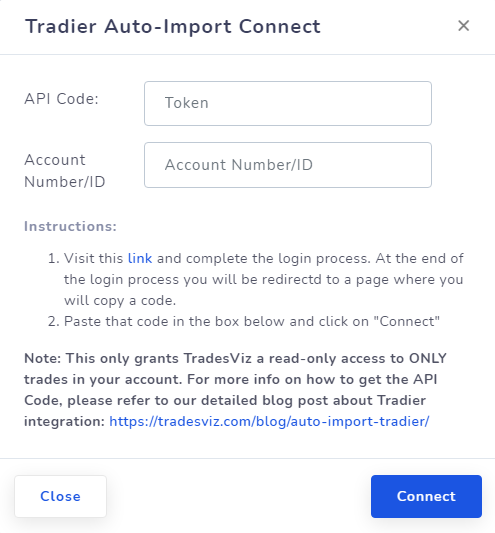
Quick setup (OAuth + account picker)
- In TradesViz, open Import/Export and choose your target trading account in Step 1.
- Select Tradier, choose sync mode, and click Continue to Tradier.
Note: If you have already imported your historical data, you can choose live intraday orders. If not, you need to first import historical orders OR sync historical orders using the historical data connection and then set up a live intraday connection.
Note: Do NOT set up both connection types in the same account - this will lead to duplicates due to different timestamps (historical data does not provide timestamps).
- Log in on Tradier and approve read-only access.
- If your Tradier login has multiple accounts, pick one in the TradesViz account picker.
- Click Connect Account, then click Sync.
Important: You no longer need to manually copy/paste API codes in this flow.
TradesViz only requests read-only permissions. We cannot place orders or move funds.
If you need help, contact [email protected].